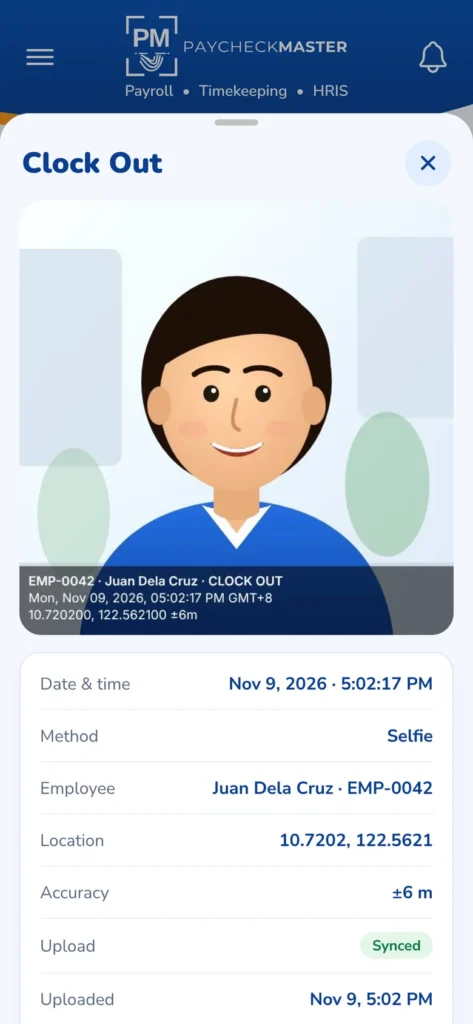



On every single log
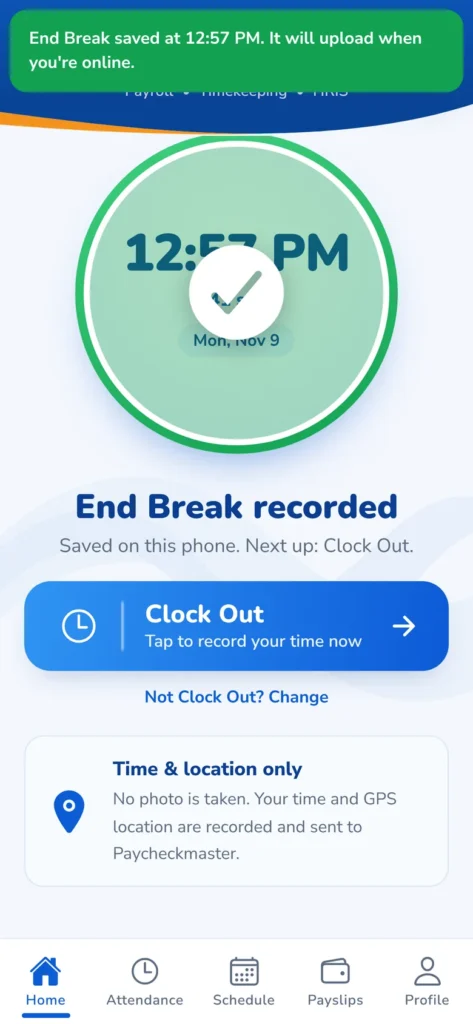
Saved on the phone, uploaded later
Ready for timekeeping & payroll
Features
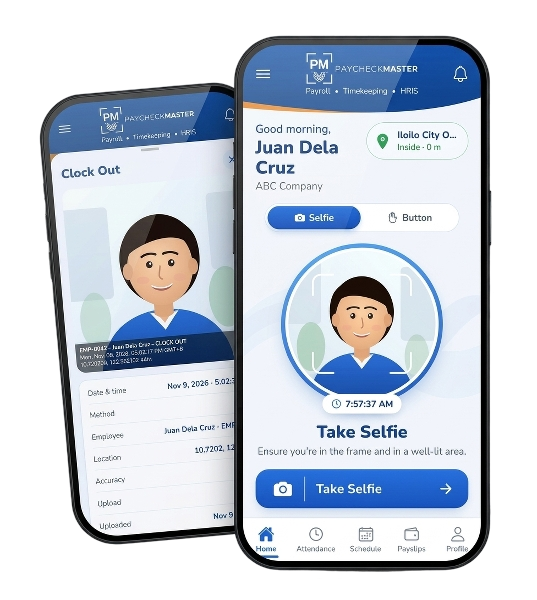
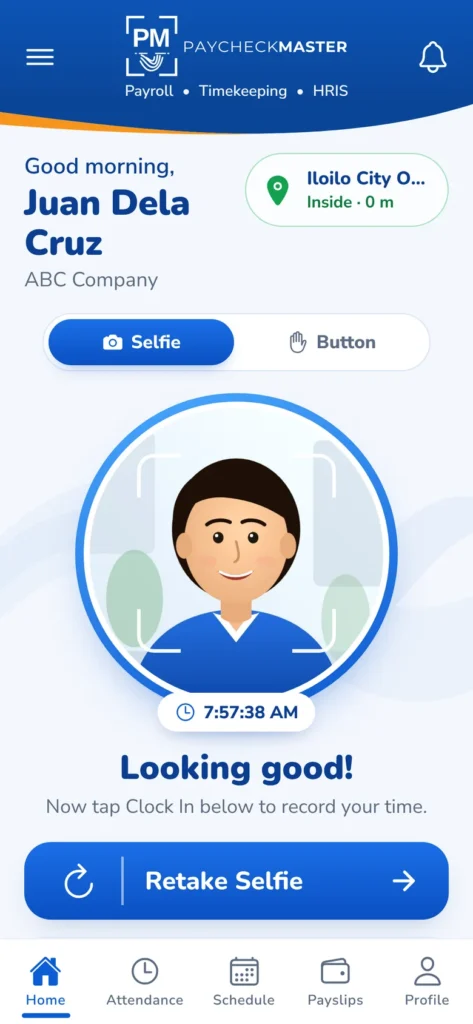
Two ways to clock in. Proof built into both.
01 · Selfie clock-in
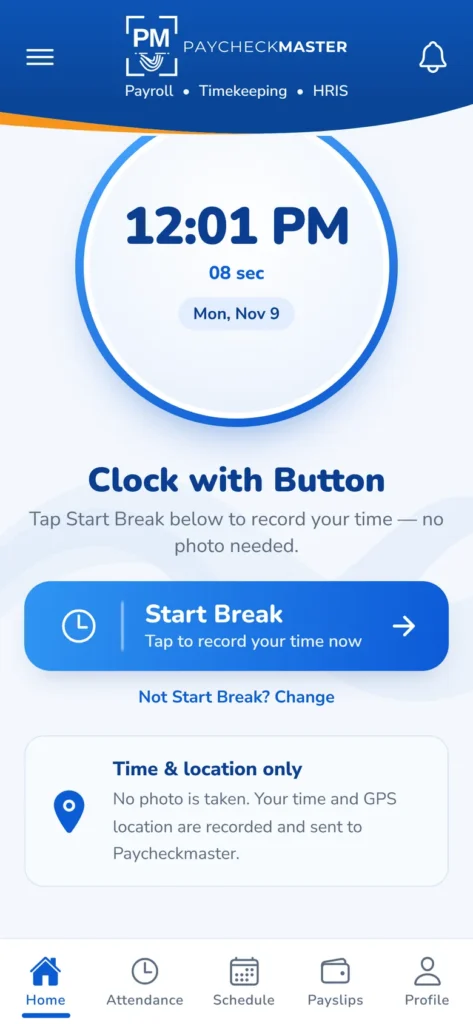
02 · Button clock-in
No camera needed? One tap still counts.
Where HR allows it, employees switch to Button mode and clock in with a single tap. The time and GPS location are still recorded, and the log is marked as a button clock-in so payroll can tell the two apart.
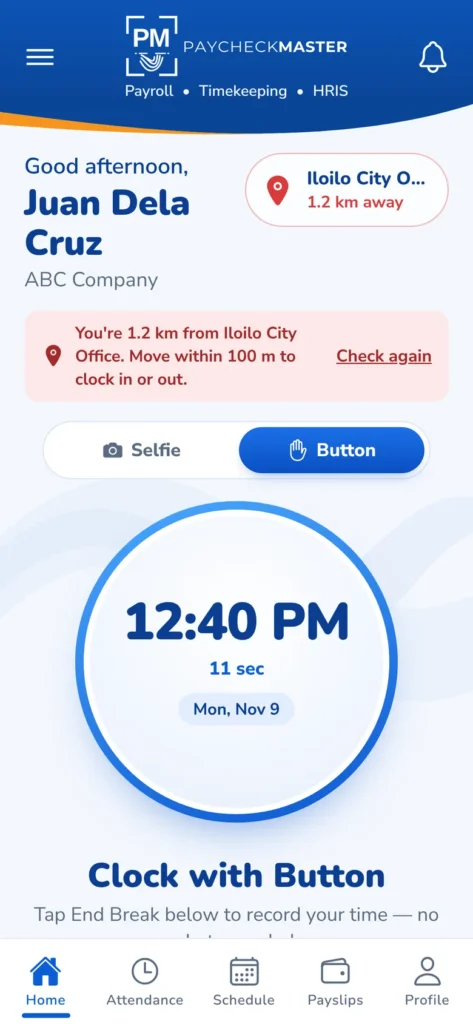
Set a latitude, longitude and radius for an employee in Paycheckmaster’s general settings. Restricted employees can clock in — by selfie or by button — only inside that area. Outside it, the app tells them how far away they are.
Hours, schedule and payslips — in their pocket.
Fewer “what’s my shift?” and “can I get my payslip?” messages to HR.
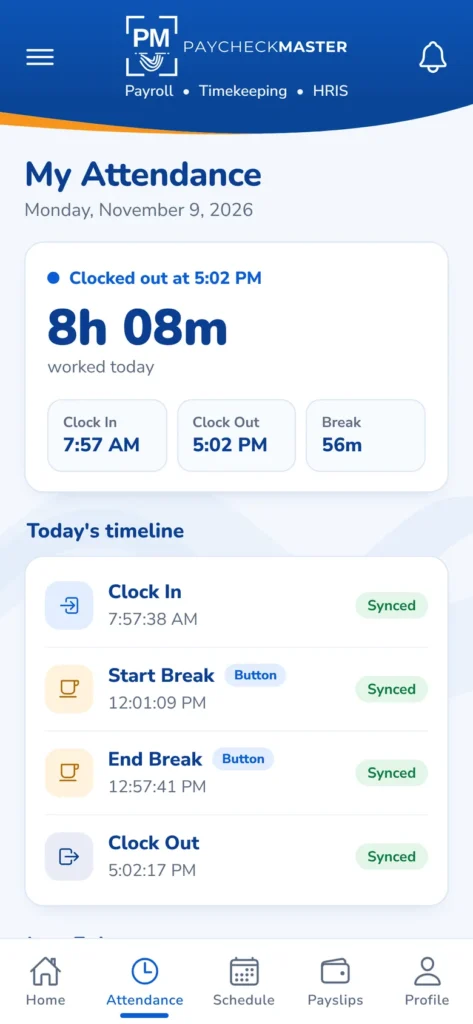
Today’s clock-ins and breaks on a timeline, hours worked so far, and a summary of the last 7 days.
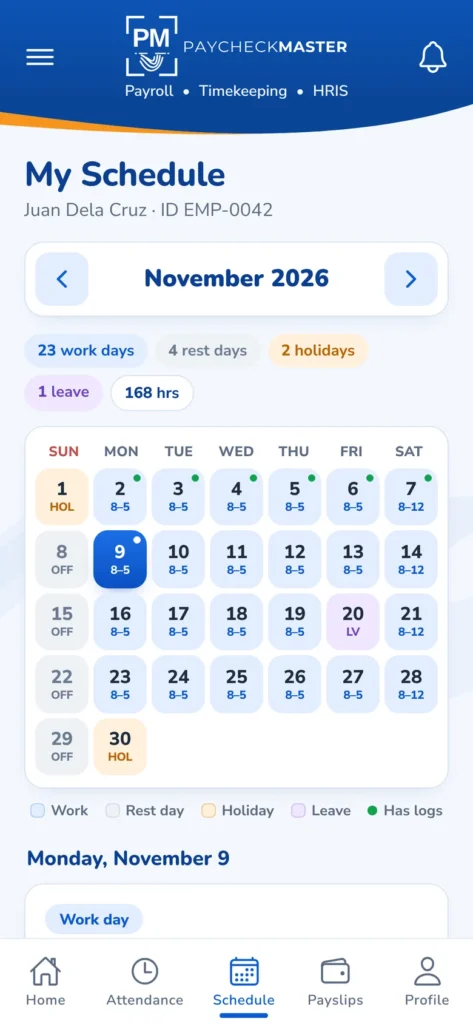
A monthly calendar of shifts, rest days and holidays, pulled from Paycheckmaster for each employee.
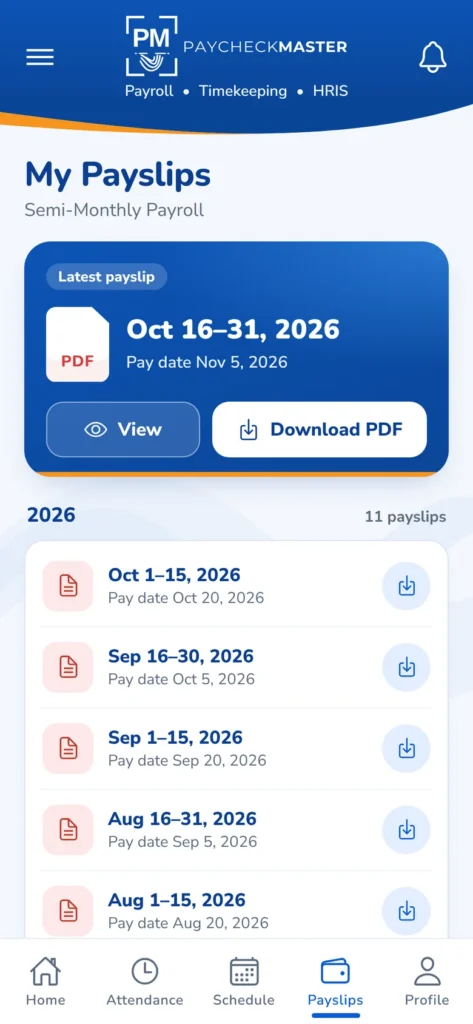
My Payslips
Every cut-off’s payslip as a PDF — open it, save it to the phone or share it. Removed from the phone at logout.
How it works
Set up once. Clock in for months.
1
Log in once, online
Employees sign in with their Paycheckmaster username and password. After that, the app stays logged in — even with no signal.
2
With a selfie or a button. Time, GPS and work-area check are captured on the spot and saved on the phone.
3
It lands in Paycheckmaster
As soon as there’s internet the log uploads by itself, ready for timekeeping and the next payroll run.
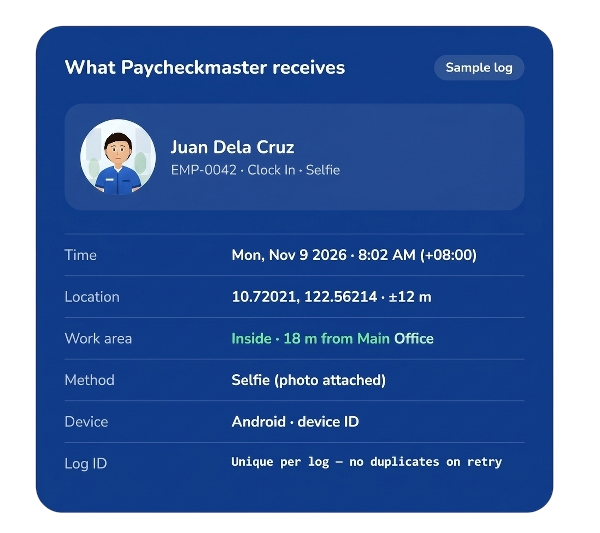
Every log answers who, when, where and how.
Each clock-in reaches Paycheckmaster with everything needed to approve it — no screenshots in group chats, no handwritten logbooks.
History & uploads
Questions we hear
The employee clocks in as usual. The log — selfie, time and location — is saved on the phone and uploads to Paycheckmaster automatically once the phone is back online.
Yes. Turn on the geofence for that employee in Paycheckmaster’s general settings with the work location and a radius. They can then clock in only inside that area.
Only if you want them to. Button clock-in can be allowed per employee; it still records the time and GPS location.
Android phones and iPhones. The app needs camera access for selfies and location access for GPS and geofencing.