


How to Enroll employee on Biometric device
- Log in as Administrator by pressing the M (menu) button and input Admin Log:
Administrator Login AccessUser: 0
Password: 12345
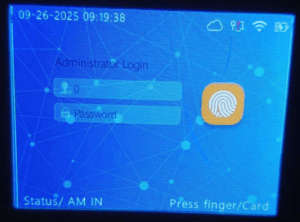
2. Once logged in, navigate to ENROLL from the menu.
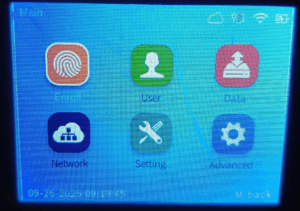
3. Select Add User to begin registration.
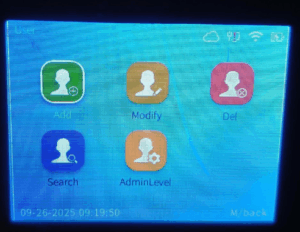
4. Input the employee information.
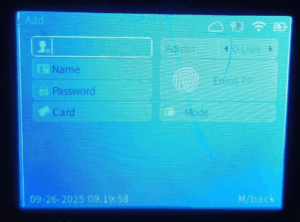
Biometric ID: This must be the same ID number used in the payroll/system.
Example: ID: 1001
Employee Name: Enter the employee’s full name.
Example: John Doe
Enroll Fingerprint(s):
-Choose Enroll Fingerprint for the desired finger (e.g., Right Index).
-Ask the employee to place the finger on the sensor firmly and lift when prompted. Repeat until the device confirms success (usually 2–3 scans).
-It’s recommended to enroll at least two different fingers per employee (for redundancy).
NOTE: Please make sure that the device is connected to the cloud before enrolling the employee’s fingerprint. This ensures that the data will sync properly with the system.
Note: To enter letters into the field, press FN and then the numbers that correspond to the letters. For example, press 4 to display a list of letters (g h I G H I) and then press the number corresponding to the small or big letter.